PowerTOP Explained — Optimize Linux Battery Life

If you are using Linux on a laptop, battery life is always one of the biggest concerns. Modern Linux distributions have improved significantly when it comes to power management, but there are still many background services, devices, and hardware components that can silently drain your battery.
In my previous article, I covered Linux battery health checks, thermal optimization, CPU governor tuning, and general battery-saving techniques. This article is an extension of that guide and focuses entirely on one powerful tool: PowerTOP.
In my previous article, I covered Linux battery optimization techniques in detail:
Read the previous article here
Unlike traditional system monitoring tools, PowerTOP helps you identify exactly what is consuming power on your Linux system and provides recommendations to improve battery life.
Watch the Full Video
You can watch the full video here:
What Is PowerTOP?
Intel Corporation developed PowerTOP as a command-line utility for monitoring and optimizing power consumption on Linux systems.
Think of PowerTOP as a “battery usage analyzer” for Linux. Instead of simply showing CPU or memory usage, it analyzes what components are waking up your CPU, preventing it from entering low-power states, and draining your battery unnecessarily.
PowerTOP can measure:
- CPU wakeups
- Device power usage
- Background processes
- Hardware power states
- Kernel activity
It can also recommend and apply automatic power-saving tunings.
Key Features
- Real-time power monitoring
- Wakeup analysis
- Automatic tunable recommendations
- Device-level optimization
- HTML report generation
- Interactive terminal interface
One of the best things about PowerTOP is that it works extremely well for laptops where battery efficiency matters the most.
How to Install PowerTOP
Installing PowerTOP is straightforward because it is available in most Linux distribution repositories.
Ubuntu / Debian
1
sudo apt install powertop
Fedora
1
sudo dnf install powertop
Arch Linux
1
sudo pacman -S powertop
After installation, verify it using:
1
powertop --version
If the version information appears correctly, PowerTOP has been installed successfully.
Understanding PowerTOP Calibration
Before using PowerTOP extensively, it is highly recommended to run a calibration test.
1
sudo powertop --calibrate
Calibration helps PowerTOP gather accurate measurements by cycling different hardware components through various power states.
During calibration, PowerTOP:
- Measures device power consumption
- Tests hardware sleep states
- Improves power estimation accuracy
However, there are a few things you should know before running it:
- Your screen may flicker
- Wi-Fi may disconnect temporarily
- USB devices may behave strangely
- The system may appear unstable for a short time
This behavior is completely normal during calibration.
Many tutorials skip this step, but calibration can significantly improve the accuracy of PowerTOP’s recommendations.
Available Options in PowerTOP
PowerTOP includes several useful options that help monitor and optimize power usage.
Instead of listing every single option, let’s focus on the most practical ones.
Start Interactive Mode
1
sudo powertop
This launches the interactive terminal interface where you can navigate through different tabs and monitor power usage in real time.
Auto-Tune Recommended Settings
1
sudo powertop --auto-tune
This automatically applies all recommended power-saving tunings.
This is probably the most commonly used PowerTOP command.
Generate an HTML Report
1
sudo powertop --html=report.html
This creates a detailed HTML report that you can open in a browser for easier analysis.
Time-Based Analysis
1
sudo powertop --time=10
This collects data for a specific duration.
In this example, PowerTOP monitors the system for 10 seconds before generating results.
Export CSV Report
1
sudo powertop --csv=report.csv
Useful if you want to compare power statistics over time.
Tabs Inside PowerTOP
When you launch PowerTOP interactively, you will notice several tabs.
Understanding these tabs makes the tool much easier to use. 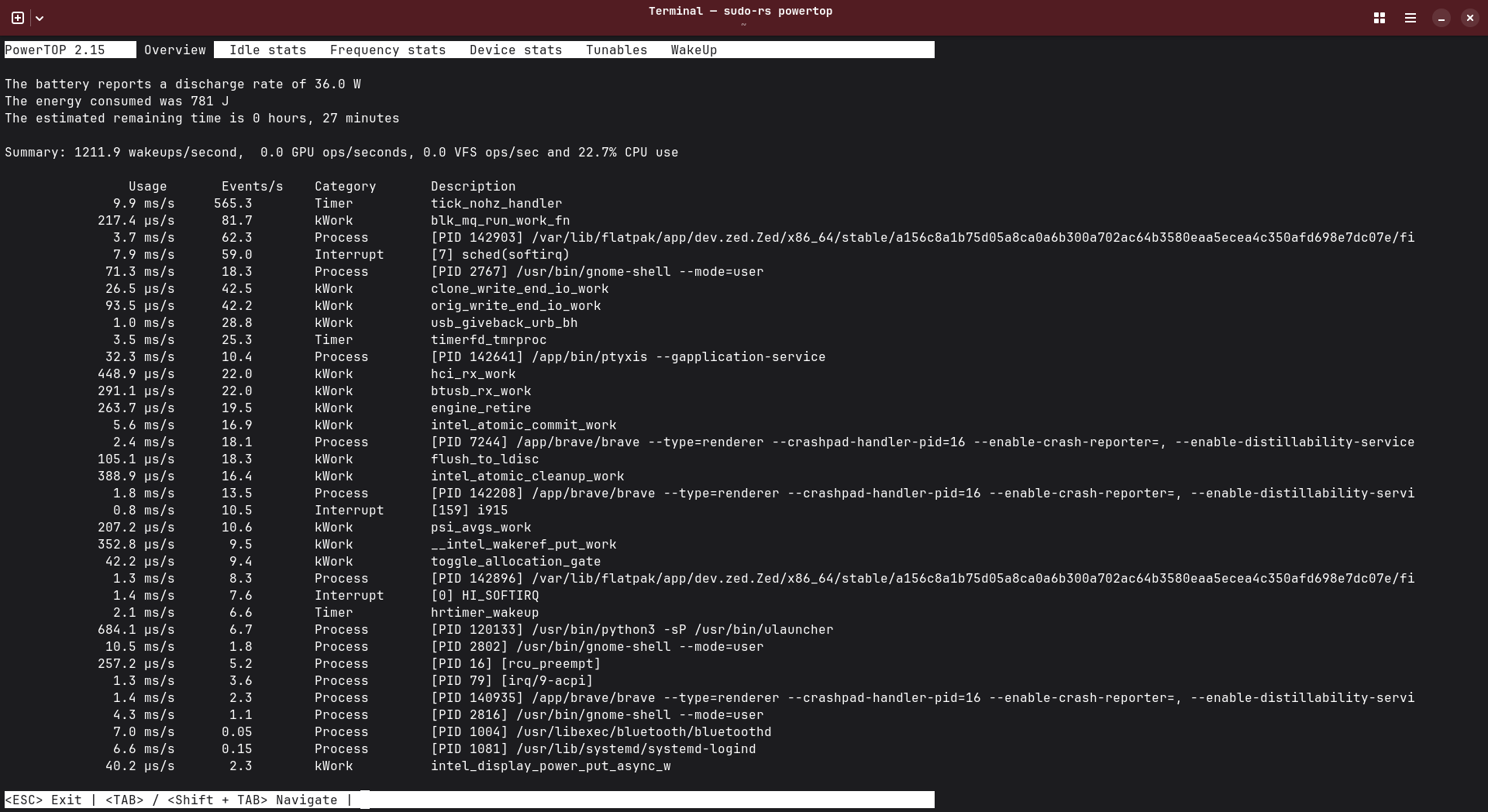
Overview
Shows the processes and hardware components consuming the most power.
Idle Stats
Displays CPU idle states and how efficiently the CPU enters low-power modes.
Frequency Stats
Shows CPU frequency usage statistics.
Device Stats
Displays power usage information for connected devices.
Tunables
Probably the most important tab.
This tab shows recommended optimizations.
WakeUp
Shows which processes and devices are waking up the CPU frequently.
How to Optimize Battery Using PowerTOP
This is where PowerTOP becomes truly useful.
Using the Tunables Tab
Inside the Tunables tab, PowerTOP labels settings as either:
- Good → Already optimized
- Bad → Can still be optimized
You can navigate using:
- Arrow keys
- Tab key
- Enter key to toggle settings
Some common optimizations include:
- USB autosuspend
- PCI runtime power management
- Audio power saving
- SATA link power management
- Wi-Fi power-saving features
Even enabling a few of these can noticeably improve battery backup.
Auto-Tune Everything
If you do not want to manually configure every setting, you can simply run:
1
sudo powertop --auto-tune
This command automatically applies all recommended power-saving settings.
In my experience, this single command alone improved battery performance significantly.
However, there is one important limitation:
The settings are temporary and reset after reboot.
That means we need to make them persistent.
Make PowerTOP Settings Persistent
One of the easiest ways to make PowerTOP auto-tuning permanent is by using a simple systemd service.
Create the service file:
1
sudo nano /etc/systemd/system/powertop.service
Add the following content:
1
2
3
4
5
6
7
8
9
10
[Unit]
Description=PowerTOP Auto Tune

[Service]
Type=oneshot
ExecStart=/usr/sbin/powertop --auto-tune
RemainAfterExit=true

[Install]
WantedBy=multi-user.target
Save the file and enable the service:
1
sudo systemctl enable powertop.service
Now PowerTOP will automatically apply optimizations every time the system boots.
What Are My Settings?
To be very honest, I did not do anything complicated or advanced.
I mainly relied on:
1
sudo powertop --auto-tune
That alone improved my battery performance noticeably.
I am currently using Fedora with its default power management daemon, and most of the time I keep the system in Balanced power mode.
This setup has been working surprisingly well for daily usage.
Sometimes people overcomplicate Linux battery optimization with dozens of tweaks, but in my case, simple PowerTOP auto-tuning already provided excellent results.
PowerTOP vs TLP
A lot of Linux users compare PowerTOP with TLP, so it is important to understand the difference.
| Tool | Purpose |
|---|---|
| PowerTOP | Analyze and suggest power optimizations |
| TLP | Automatically manage long-term power-saving policies |
Many users combine both tools together.
However, in my Fedora setup, the default power daemon already handles many power management tasks. Because of that, I chose not to install TLP to avoid potential conflicts.
Using PowerTOP together with Fedora’s default power management has been more than enough for my workflow.
Limitations of PowerTOP
Although PowerTOP is extremely useful, it is not perfect.
There are a few limitations you should keep in mind:
- Power estimates may not always be 100% accurate
- Some tunings can occasionally cause hardware issues
- Results vary depending on hardware and kernel version
- Certain aggressive optimizations may reduce performance
- Not every recommendation is suitable for every laptop
Because of this, it is always a good idea to test changes gradually instead of blindly enabling everything permanently.
Conclusion
PowerTOP is one of the most powerful Linux tools for analyzing and optimizing battery usage.
What makes it special is that it not only shows what is draining your battery, but also provides actionable recommendations to improve power efficiency.
For laptop users especially, PowerTOP can make a noticeable difference in battery life with very little effort.
In my own setup, simply using:
1
sudo powertop --auto-tune
already produced significant improvements.
If you combine PowerTOP with:
- Good thermal management
- Proper CPU governor settings
- Sensible background services
- Healthy battery maintenance
you can dramatically improve your Linux laptop battery experience.
And if you have not already, make sure to check out my previous article where I covered battery health checks, CPU tuning, thermal optimization, and general Linux battery-saving techniques in detail.