What Is Storage Provisioning
A single hard drive is a single point of failure. The moment it fails — and eventually, every drive does — you lose access to everything on it. For personal files, that’s painful. For a business running 24/7 workloads, it can be catastrophic.
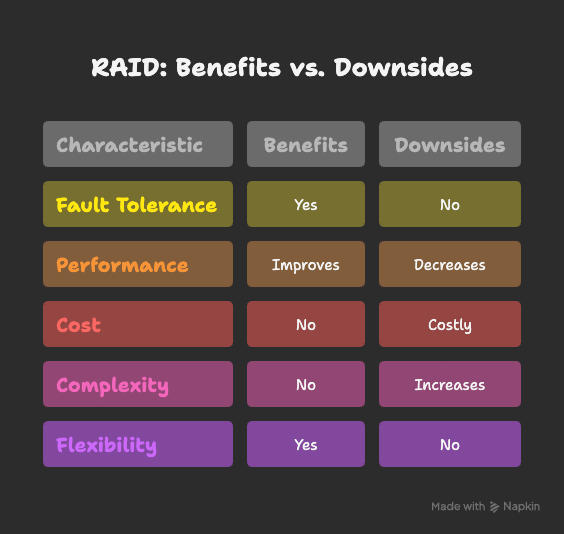
RAID is one of the foundational technologies used to address this. By spreading data across multiple physical drives, RAID can protect against drive failure, improve read and write performance, or both — depending on which level you choose.
In this article we’ll cover what RAID is, how it works under the hood, the difference between hardware and software RAID, every major RAID level with honest trade-offs, and how to choose the right one for your situation.
What is RAID?
RAID stands for Redundant Array of Independent Disks. It’s a method of combining multiple physical drives so they appear and behave as a single logical storage unit — but with additional properties like fault tolerance, improved throughput, or both.
RAID achieves this through two core techniques:
- Striping — splitting data into chunks and writing them across multiple drives simultaneously. This improves performance because multiple drives are reading or writing in parallel.
- Mirroring — writing the same data to two or more drives at once. This provides redundancy: if one drive dies, an identical copy exists on another.
- Parity — a mathematical calculation stored alongside the data that allows the array to reconstruct lost data after a drive failure, without needing a full mirror copy.
Different RAID levels combine these techniques in different ways, each with its own trade-offs between performance, capacity, and fault tolerance.
An important distinction: RAID is not a backup
This is the most common misconception about RAID, and it’s worth stating clearly: RAID is not a backup.
RAID protects against drive failure. It does not protect against:
- Accidental file deletion (deleting a file deletes it on all mirrors immediately)
- Ransomware or malware (encryption propagates across all drives instantly)
- Corruption caused by a bad controller or firmware bug
- Theft or physical destruction of the system
- User error
A proper data protection strategy requires both RAID and regular backups stored separately (ideally offsite or in the cloud). RAID keeps your system running when a drive fails; backups are what you restore from when everything else goes wrong.
Types of RAID implementation
Before choosing a RAID level, you need to decide how the RAID array will be managed — in hardware or software.
Hardware RAID
Hardware RAID uses a dedicated RAID controller card that manages all RAID operations independently from the CPU and operating system. The controller presents the array to the OS as a single logical disk, so the OS has no knowledge of the underlying drives or RAID configuration.
Advantages:
- Better performance — the controller has its own processor and cache (typically battery-backed)
- Lower CPU overhead on the host system
- Consistent performance under heavy load
- Supports advanced features like drive hot-swap and cache flushing on power loss
Disadvantages:
- More expensive — good controllers cost hundreds to thousands of dollars
- Vendor lock-in — if the controller fails, you may need an identical controller to read the array
- Less flexible — configuration changes require controller-level management tools
Hardware RAID is the standard in enterprise servers, SANs, and any environment where performance and reliability are non-negotiable.
Software RAID
Software RAID is managed entirely by the operating system using the host CPU and system RAM. No dedicated hardware is required.
Advantages:
- Inexpensive — no additional hardware needed
- Flexible — managed through the OS, easy to inspect and reconfigure
- Portable — arrays can often be moved between systems
- Supported natively by Linux (mdadm), Windows (Storage Spaces), and macOS
Disadvantages:
- Consumes host CPU and RAM during parity calculations and rebuilds
- Performance can degrade under heavy load
- Generally less feature-rich than hardware RAID
Software RAID is well-suited for home labs, small businesses, development environments, and Linux servers where cost matters more than peak performance.
HBA (Host Bus Adapter) with OS-level RAID
A middle ground worth mentioning: some systems use a HBA (a non-RAID controller that simply passes drives through to the OS) combined with OS-level RAID software like ZFS or Linux mdadm. This gives you the flexibility and visibility of software RAID without the limitations of consumer-grade onboard RAID chipsets. ZFS in particular is widely used in this configuration in NAS systems and storage servers.
RAID levels explained
RAID 0 — striping
RAID 0 splits data evenly across all drives in the array, with no redundancy. Every read and write is parallelised across multiple drives, delivering the best possible performance.
- Minimum drives: 2
- Usable capacity: 100% of total raw capacity
- Fault tolerance: None — if any single drive fails, the entire array is lost
- Best for: Scratch disks, video editing caches, temporary workloads where speed matters and data loss is acceptable
| Advantages | Disadvantages |
| Fastest read/write performance of any RAID level | Zero fault tolerance |
| Full use of all drive capacity | Risk increases with number of drives |
When to avoid it: Never use RAID 0 for data you can’t afford to lose. The more drives in the array, the higher the probability that one will fail.
RAID 1 — mirroring
RAID 1 writes identical data to two (or more) drives simultaneously. Either drive can serve read requests, and if one fails, the other continues operating without interruption.
- Minimum drives: 2
- Usable capacity: 50% of total raw capacity (with 2 drives)
- Fault tolerance: 1 drive failure
- Best for: OS drives, critical single-server deployments, situations where simplicity and reliability matter most
| Advantages | Disadvantages |
| Simple to understand and manage | 50% capacity overhead |
| Fast read performance (reads from both drives) | Write speed limited to single drive speed |
| Instant failover — no rebuild needed to stay online |
RAID 3 — striping with dedicated parity
RAID 3 stripes data at the byte level across all drives and dedicates one drive entirely to parity. It was designed for sequential workloads like video streaming where large blocks of data are read continuously.
- Minimum drives: 3
- Usable capacity: (N−1) drives
- Fault tolerance: 1 drive failure (unless the parity drive fails during a rebuild)
- Best for: Rarely used today — RAID 5 supersedes it in almost all scenarios
| Advantages | Disadvantages |
| Good sequential throughput | Dedicated parity drive is a bottleneck for writes |
| Poor random I/O performance | |
| Largely obsolete |
RAID 5 — striping with distributed parity
RAID 5 is one of the most widely deployed RAID levels in enterprise environments. It stripes data across all drives and distributes parity information evenly across all of them — no single drive is dedicated to parity.
If one drive fails, the parity data on the remaining drives is used to reconstruct the lost data onto a replacement drive.
- Minimum drives: 3 (commonly stated as 5 in older documentation — 3 is the actual minimum)
- Usable capacity: (N−1) drives
- Fault tolerance: 1 drive failure
- Best for: General-purpose file servers, NAS arrays, moderate-performance workloads
| Advantages | Disadvantages |
| Good balance of performance, capacity, and redundancy | Slow write performance under heavy random I/O (parity penalty) |
| Efficient use of capacity | Long rebuild times on large drives — risk of second failure during rebuild |
| Can survive 1 drive failure | Not recommended for drives larger than 2–4 TB without RAID 6 |
A note on RAID 5 and large drives: As drive capacities have grown, so have rebuild times. Rebuilding a failed 8 TB drive in a RAID 5 array can take 24–48 hours or more. During that time, if a second drive fails (or encounters an unrecoverable read error), the entire array is lost. RAID 6 was developed specifically to address this risk.
RAID 6 — double distributed parity
RAID 6 works identically to RAID 5 but stores two independent sets of parity data across the array. This means the array can survive the simultaneous failure of any two drives without data loss.
- Minimum drives: 4
- Usable capacity: (N−2) drives
- Fault tolerance: 2 simultaneous drive failures
- Best for: Large-capacity arrays, environments with high drive counts, anywhere RAID 5 rebuild risk is a concern
| Advantages | Disadvantages |
| Survives 2 simultaneous drive failures | Higher write overhead than RAID 5 (calculating two parity sets) |
| Array stays online and protected during a rebuild | Requires at least 4 drives |
| Recommended for drives larger than 4 TB |
RAID 10 — mirroring + striping
RAID 10 (sometimes written RAID 1+0) combines mirroring and striping. Drives are first paired into mirrored sets (RAID 1), then those mirrored sets are striped together (RAID 0). The result is an array that delivers both high performance and strong redundancy.
- Minimum drives: 4 (must be an even number)
- Usable capacity: 50% of total raw capacity
- Fault tolerance: At least 1 drive per mirrored pair — can survive multiple failures as long as no mirrored pair loses both drives
- Best for: Databases, high-traffic applications, virtual machine datastores, any workload requiring both speed and reliability
| Advantages | Disadvantages |
| Excellent read and write performance | 50% capacity overhead — expensive |
| Strong fault tolerance | Requires at least 4 drives |
| Fast rebuild times (rebuilds from mirror, not parity calculation) | |
| Preferred choice for most production databases |
RAID levels at a glance
| RAID level | Min drives | Usable capacity | Drive failures tolerated | Performance | Best use case |
| RAID 0 | 2 | 100% | 0 | Highest | Scratch disks, temporary data |
| RAID 1 | 2 | 50% | 1 | Good reads, average writes | OS drives, critical single servers |
| RAID 3 | 3 | N−1 | 1 | Sequential only | Largely obsolete |
| RAID 5 | 3 | N−1 | 1 | Good | File servers, NAS (drives <4 TB) |
| RAID 6 | 4 | N−2 | 2 | Moderate | Large NAS arrays, drives >4 TB |
| RAID 10 | 4 | 50% | 1 per pair | Excellent | Databases, production workloads |
How to choose the right RAID level
I need maximum speed and don’t care about data loss → RAID 0 I need a simple, reliable OS or boot drive → RAID 1 I need a balance of capacity, redundancy, and cost for a file server → RAID 5 (drives under 4 TB) or RAID 6 (larger drives or higher drive counts) I need the best combination of performance and fault tolerance for a database or production server → RAID 10 I’m running a large NAS with many big drives → RAID 6 or consider ZFS with RAIDZ2, which offers similar protection with better data integrity checking
FAQs
Is RAID a backup? No. RAID protects against drive failure only. It doesn’t protect against accidental deletion, ransomware, corruption, or physical loss. Always maintain separate backups — ideally following the 3-2-1 rule: 3 copies, on 2 different media types, with 1 stored offsite.
What is the 3-2-1 backup rule? Keep at least 3 copies of your data, stored on 2 different types of media (e.g. disk and tape, or local drive and cloud), with 1 copy stored offsite or in the cloud. RAID covers the “fast availability” layer; the 3-2-1 rule covers everything else.
What happens when a drive fails in a RAID array? In RAID levels with redundancy (1, 5, 6, 10), the array continues operating in a degraded state — it’s still functional but no longer fully protected. You replace the failed drive, and the controller rebuilds the missing data onto the new drive automatically. During the rebuild, the array is vulnerable to a second failure, which is why monitoring and prompt replacement are critical.
What is a hot spare? A hot spare is an extra drive installed in the array but not actively used for storage. When a drive fails, the controller automatically begins rebuilding onto the hot spare immediately — without waiting for a human to physically replace the failed drive. This reduces the degraded window significantly and is recommended in enterprise environments.
Which RAID level is best for a NAS at home? For most home NAS setups with 2 drives, RAID 1 is the simplest and most effective option. For 4+ drives, RAID 5 or RAID 6 gives better capacity efficiency. Many NAS operating systems (Synology DSM, TrueNAS) also offer proprietary RAID variants like Synology Hybrid RAID (SHR) that handle mixed drive sizes more efficiently than standard RAID.
Can I mix drives of different sizes in a RAID array? In most standard RAID configurations, the array uses the capacity of the smallest drive across all members — larger drives contribute no extra space. Proprietary solutions like Synology Hybrid RAID (SHR) and ZFS handle mixed sizes more intelligently.
What is RAID rebuild time, and why does it matter? When a drive fails and is replaced, the controller must reconstruct the missing data across the new drive — this is the rebuild. During the rebuild, the array is degraded and vulnerable. On modern high-capacity drives (8 TB+), rebuilds can take 24–72 hours. During that window, any further drive failure (or unrecoverable read error on a surviving drive) can destroy the entire array. This is the primary reason RAID 6 is recommended over RAID 5 for large drives.
Conclusion
RAID is one of the most effective tools for improving storage reliability and performance — but only when you understand what it actually protects against and choose the right level for your workload.
- RAID 0 for raw speed with no data you can’t lose
- RAID 1 for simplicity and reliable mirroring
- RAID 5 for balanced file server storage with moderate drive sizes
- RAID 6 for large arrays or large drives where rebuild risk is real
- RAID 10 for production databases and any workload demanding both performance and protection
Whatever RAID level you choose, pair it with a proper backup strategy. RAID keeps your system running through a drive failure. Backups are what save you from everything else.