Hypervisor Explained: Types, Benefits, and How It Work
If you’ve read about virtualization, you’ve inevitably come across the word hypervisor. It’s not just jargon — it’s the specific piece of software that makes virtualization work. Without a hypervisor, there are no virtual machines.
In this article we’ll cover what a hypervisor is, how it manages hardware resources, the two main types and when to use each, and the key trade-offs between them.
What is a hypervisor?
A hypervisor — sometimes called a Virtual Machine Monitor (VMM) — is software or firmware that creates, runs, and manages virtual machines (VMs). Its core job is to abstract physical hardware resources and share them across multiple isolated virtual environments, each running its own operating system.
The hardware resources a hypervisor manages include:
- CPU — allocates processing time to each VM
- Memory (RAM) — assigns memory pools to each VM, keeping them isolated
- Storage — presents virtual disks to VMs backed by physical drives
- Network — creates virtual network interfaces connected to physical adapters
Two terms come up constantly when talking about hypervisors:
- Host — the physical machine the hypervisor runs on
- Guest — each virtual machine running on top of the hypervisor
Each guest VM is fully isolated from the others. It has its own OS, its own virtual hardware, and no visibility into what’s running in neighbouring VMs — even though they all share the same physical machine underneath.
How a hypervisor manages resources
When you start a VM, the hypervisor doesn’t hand over real hardware — it presents a virtual representation of that hardware to the guest OS. The guest OS thinks it’s running on a real machine, but every hardware instruction it issues is intercepted and handled by the hypervisor.
This abstraction layer is what makes it possible to:
- Run a Windows VM and a Linux VM side by side on the same server
- Pause or snapshot a VM and resume it later without affecting others
- Move a VM from one physical host to another with no downtime (live migration)
- Allocate more virtual CPU or RAM to a VM without changing physical hardware
The hypervisor continuously arbitrates access to the underlying hardware, ensuring no single VM can monopolise resources or interfere with others.
Types of hypervisors
There are two categories of hypervisor, defined by how they interact with the physical hardware.
Type 1 — bare-metal hypervisor
A Type 1 hypervisor runs directly on the physical hardware, with no general-purpose operating system underneath it. It is the first thing that loads when the machine boots, and it owns the hardware entirely.
Because there’s no host OS consuming resources or introducing latency, Type 1 hypervisors are significantly more efficient and are the standard in enterprise data centres and cloud infrastructure.
Characteristics:
- Direct hardware access → lower overhead and better performance
- Purpose-built for running VMs at scale
- Requires dedicated hardware (you can’t browse the web on an ESXi host)
- Managed remotely via separate management tools (e.g. VMware vCenter)
Common examples:
| Hypervisor | Vendor | Notes |
| VMware ESXi / vSphere | VMware (Broadcom) | Industry standard in enterprise environments |
| Microsoft Hyper-V | Microsoft | Built into Windows Server; also available standalone |
| KVM | Open source (Linux) | Integrated into the Linux kernel; powers many cloud platforms |
| Citrix Hypervisor | Citrix | Enterprise-focused; strong VDI support |
| Xen | Open source | Used by AWS under the hood historically |
Type 2 — hosted hypervisor
A Type 2 hypervisor runs on top of an existing operating system — your regular Windows, macOS, or Linux install. The host OS loads first, then the hypervisor runs as an application on top of it, and VMs run inside that.
The extra OS layer adds overhead: every hardware request from a guest VM must pass through the hypervisor and the host OS before reaching the physical hardware. This makes Type 2 hypervisors less efficient than Type 1, but they’re far easier to set up and ideal for personal use, development, and testing.
Characteristics:
- Runs on any desktop or laptop alongside normal applications
- Easy to install — no dedicated hardware needed
- Slight performance penalty due to the host OS layer
- VMs share resources with whatever else is running on the host
Common examples:
| Hypervisor | Vendor | Notes |
| VirtualBox | Oracle | Free, open source; works on Windows, macOS, Linux |
| VMware Workstation Pro | VMware | Paid; professional-grade features for developers |
| Parallels Desktop | Parallels | Paid; best option for running Windows on Apple Silicon Macs |
| QEMU | Open source | Lightweight; often used with KVM on Linux |
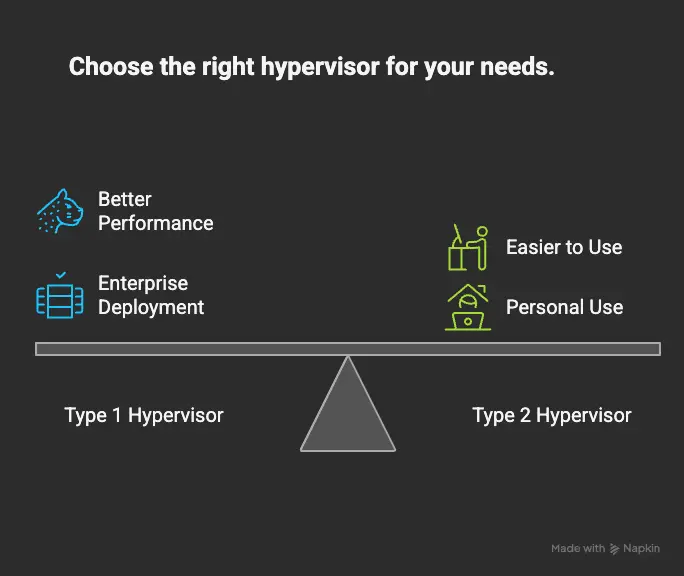
Type 1 vs Type 2 at a glance
| Type 1 (bare-metal) | Type 2 (hosted) | |
| Runs on | Physical hardware directly | Host operating system |
| Performance | Higher — less overhead | Lower — host OS adds a layer |
| Setup complexity | Higher — dedicated hardware | Lower — installs like any app |
| Typical use | Enterprise servers, data centres, cloud | Developers, home labs, testing |
| Requires dedicated machine | Yes | No |
| Examples | ESXi, Hyper-V, KVM | VirtualBox, VMware Workstation, Parallels |
Which type should you use?
Use a Type 1 hypervisor if you’re running production workloads, deploying VMs in a data centre or on-premises infrastructure, or need maximum performance and reliability. ESXi and Hyper-V are the most common choices in enterprise environments; KVM is the dominant option in Linux-based and cloud environments.
Use a Type 2 hypervisor if you want to run a different OS on your personal machine for development, testing, or learning. VirtualBox is free and works everywhere. If you’re on a Mac — particularly Apple Silicon — Parallels Desktop is significantly better optimised than the alternatives.
FAQs
Can a hypervisor run on a laptop? Yes. Type 2 hypervisors like VirtualBox and VMware Workstation run on any reasonably modern desktop or laptop. You’ll want at least 16 GB of RAM if you plan to run multiple VMs simultaneously.
Is KVM a Type 1 or Type 2 hypervisor? KVM (Kernel-based Virtual Machine) is classified as Type 1 because it runs within the Linux kernel itself, giving it direct access to hardware. However, it requires a running Linux host to operate, which sometimes causes confusion. The key distinction is that KVM turns the Linux kernel into the hypervisor rather than sitting on top of a general-purpose OS.
What’s the difference between a hypervisor and a container runtime like Docker? A hypervisor virtualises an entire machine, including a full OS for each VM. Docker containers share the host OS kernel and only isolate the application and its dependencies. Containers are lighter and faster to start; VMs provide stronger isolation. In practice, both are used together — containers often run inside VMs in production environments.
Can multiple VMs affect each other’s performance? Yes. Because VMs share physical resources, a VM consuming excessive CPU or I/O can degrade performance for its neighbours — a problem called the noisy neighbour effect. Hypervisors provide resource controls (CPU limits, memory reservations, I/O prioritisation) to manage this, but it requires active configuration and monitoring.
What happens to VMs if the hypervisor crashes? All VMs on that host go down with it. This is why enterprise environments use clustered hypervisor hosts with shared storage — if one host fails, its VMs can be restarted automatically on a surviving host. VMware’s vSphere HA and Microsoft’s Failover Clustering are common implementations of this.
Conclusion
A hypervisor is the foundation that makes virtualisation practical. By abstracting physical hardware into a shared pool and presenting each VM with its own isolated environment, it enables a single server to do the work of many — more efficiently, more flexibly, and at lower cost.
The type you need depends entirely on context:
- Type 1 is the right choice for anything running in production — servers, data centres, cloud infrastructure — where performance and reliability are non-negotiable.
- Type 2 is the right choice for personal machines, development environments, and learning — anywhere convenience and ease of setup matter more than raw efficiency.
Understanding the difference between the two, and knowing why KVM sits in an interesting middle ground, gives you a solid foundation for working with any virtualisation platform you encounter in practice.