Virtualization Explained: Benefits, Types, and Best Software
When I first heard the word virtualization, it sounded like something out of science fiction. Imagine your computer running not just one operating system, but several — Windows, Linux, and macOS — all at the same time, on the same physical hardware. No rebooting, no switching machines.
That’s exactly what virtualization does. And while it started as a niche technique for developers and IT labs, it’s now the foundation of modern enterprise infrastructure, cloud computing, and even everyday developer workflows.
In this article, we’ll cover what virtualization is, how it actually works, the different types, the trade-offs, and the software options worth knowing about.
What is virtualization?
Virtualization is the process of creating software-based (virtual) representations of physical resources — such as computers, storage, or networks — so that multiple isolated environments can run on a single piece of hardware simultaneously.
The key component that makes this possible is a hypervisor: a layer of software that sits between the physical hardware and the virtual machines (VMs), allocating CPU, memory, and storage to each VM independently.
Each virtual machine behaves exactly like a real computer. It has its own operating system, its own file system, its own network interface — and it has no direct knowledge that it’s sharing hardware with other VMs.
A simple example
Say you primarily use Windows but occasionally need Linux for a development project. Without virtualization, you’d have to dual-boot — restart your machine, choose an OS, and switch back when done. With a tool like VirtualBox or VMware Workstation, you can run Linux in a window alongside your Windows desktop, copy files between them, and close it when you’re done. Same hardware, two operating systems, running simultaneously.
In enterprise environments, this same principle scales to hundreds or thousands of VMs running on a cluster of physical servers — which is the basis of how data centres and cloud platforms like AWS, Azure, and GCP operate.
How a hypervisor works
There are two types of hypervisors, and understanding the difference is useful:
| Type | Description | Examples |
| Type 1 (bare-metal) | Runs directly on physical hardware — no host OS required. More efficient and used in enterprise/data centre environments. | VMware ESXi, Microsoft Hyper-V, Citrix Hypervisor |
| Type 2 (hosted) | Runs on top of an existing OS (like Windows or macOS). Easier to set up, used for personal or developer use. | VirtualBox, VMware Workstation, Parallels Desktop |
For most home users and developers, Type 2 is what you’ll encounter. For anything running in a data centre or production environment, Type 1 is the standard.
Benefits of virtualization
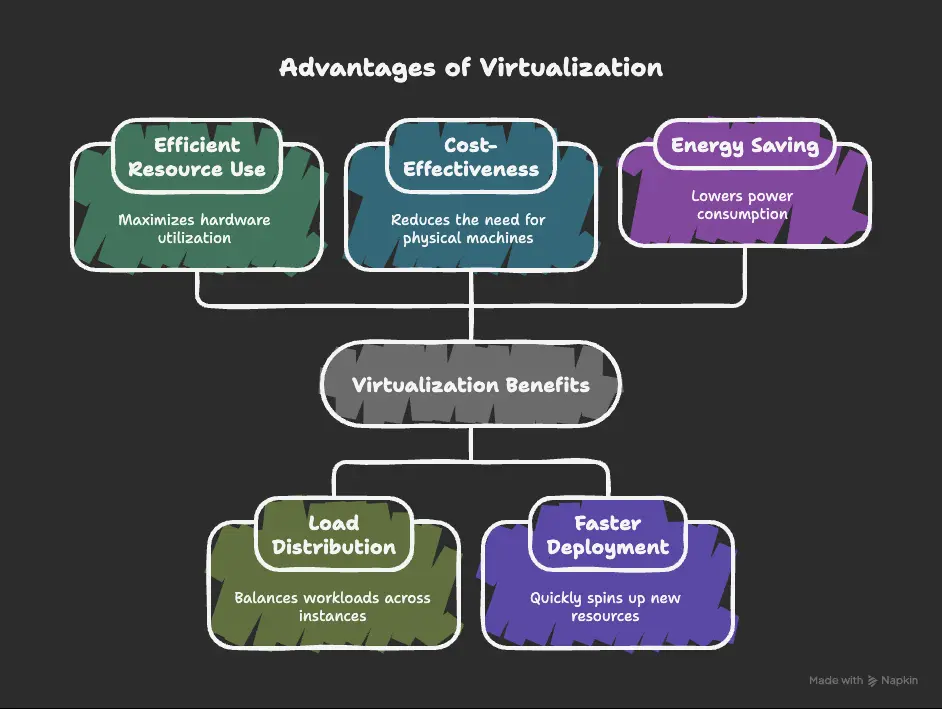
Hardware consolidation: Instead of running five workloads on five separate physical servers (each using maybe 20% of their capacity), virtualization lets you run all five on one server at full utilisation. This is one of the primary reasons enterprises adopted it — fewer servers means less hardware cost, less rack space, and less power consumption.
Faster provisioning: Spinning up a new physical server takes days or weeks. Spinning up a new VM takes minutes. For development, testing, and scaling applications, this speed is enormously valuable.
Isolation and safety: Each VM is isolated from the others. If one crashes or is compromised, the others continue running unaffected. This also makes VMs ideal for testing software, running untrusted code, or experimenting with system configurations without risk to the host.
Snapshots and rollbacks: Most virtualization platforms let you take a snapshot of a VM at any point — capturing its exact state. If something goes wrong after an update or configuration change, you can roll back to the snapshot instantly. There’s no equivalent to this on a physical machine.
Portability: A VM is ultimately just a set of files. You can copy it, move it to a different host, or back it up like any other file. Migrating a workload from one physical server to another becomes a straightforward operation.
Downsides of virtualization
Performance overhead: Virtualisation introduces a layer of abstraction between the software and the hardware. For most general workloads this overhead is negligible, but for latency-sensitive or compute-intensive applications — high-frequency trading, real-time signal processing, GPU-bound workloads — it can be a real constraint.
Resource contention: Multiple VMs sharing the same physical CPU, RAM, and disk means they compete for resources. A single VM consuming excessive CPU or I/O can degrade performance for its neighbours — a problem known as the noisy neighbour effect. Proper resource allocation and limits are essential.
Expanded attack surface: Each VM is a potential entry point. If the hypervisor itself is compromised (a hypervisor escape), an attacker could potentially access all VMs on that host. Keeping hypervisor software patched and following security best practices is critical.
Complexity at scale: Managing dozens of VMs is straightforward. Managing thousands requires dedicated tooling, automation, and expertise. Without proper governance, VM sprawl — the accumulation of unused or forgotten virtual machines — becomes a common problem.
Types of virtualization
Server virtualization
The most common type. A single physical server is divided into multiple VMs, each running its own OS and applications. This is the backbone of data centres and cloud infrastructure.
Desktop virtualization
Virtual desktop instances (VDIs) are hosted on a central server and delivered to end users over a network. Users get a full desktop experience without a powerful local machine. Commonly used in large organisations where IT needs centralised control over endpoints.
Application virtualization
Applications run on a server but are streamed or delivered to users’ devices without being installed locally. This simplifies software management — updates happen centrally, and users always get the latest version. Examples include Citrix Virtual Apps and Microsoft App-V.
Network virtualization
Physical network infrastructure is abstracted into software-defined virtual networks. Administrators can create, configure, and manage networks without touching physical switches or cables. This is foundational to technologies like SDN (Software-Defined Networking) and enables multi-tenant environments where different teams or customers share the same physical network hardware with complete logical separation.
Storage virtualization
Storage capacity from multiple physical devices — different arrays, different vendors, even different locations — is pooled together and presented as a single, unified storage resource. Administrators allocate from the pool without worrying about which physical disk the data actually lives on. This is how technologies like SAN (Storage Area Network) and solutions such as VMware vSAN operate.
Virtualization software worth knowing
| Software | Type | Cost | Best for |
| VMware ESXi | Type 1 hypervisor | Free (with paid management tools) | Enterprise servers, data centres |
| Microsoft Hyper-V | Type 1 hypervisor | Included with Windows Server | Windows-centric enterprise environments |
| Citrix Hypervisor | Type 1 hypervisor | Paid | Large-scale enterprise and VDI deployments |
| VirtualBox | Type 2 hypervisor | Free (open source) | Developers, home labs, testing |
| VMware Workstation | Type 2 hypervisor | Paid (free Player version) | Professional developers and power users |
| Parallels Desktop | Type 2 hypervisor | Paid | Running Windows on Apple Silicon / macOS |
Virtualization vs cloud computing
These two terms are often confused. The relationship is straightforward: virtualization is the technology; cloud computing is the service built on top of it.
When you rent a virtual machine from AWS EC2 or Azure, you’re getting a VM running on a hypervisor in their data centre. The cloud provider handles the physical hardware, the hypervisor, the network, and the management tooling — you just get the VM. Virtualization is what makes it possible to carve up a single physical server and rent its capacity to thousands of different customers simultaneously.
FAQs
Can virtualization slow down my computer? Yes, if your machine doesn’t have enough RAM or CPU headroom. Running a VM takes real resources from your host system. As a rough guide, allocate at least 8 GB of RAM to your host before running VMs, and give each VM no more than half your total available resources.
Is virtualization the same as containerization (Docker)? No, though they’re related. VMs virtualise an entire machine including the OS. Containers (like Docker) share the host OS kernel and only isolate the application and its dependencies. Containers are lighter and faster to start; VMs provide stronger isolation. In practice, many environments use both.
What’s VM sprawl, and why does it matter? VM sprawl is the accumulation of virtual machines that are no longer needed but haven’t been decommissioned. Because VMs are easy to create, organisations often end up with hundreds of forgotten VMs consuming storage and licences. Regular audits and lifecycle policies help keep it under control.
Which hypervisor should I use for a home lab? VirtualBox is free and works well on Windows, macOS, and Linux. If you’re on a Mac with Apple Silicon, Parallels Desktop is significantly better optimised than the alternatives.
Conclusion
Virtualization transformed IT from a world of rigid, underutilised physical servers into one where resources can be pooled, shared, and allocated dynamically. It’s the reason cloud computing is possible, the reason modern data centres are as efficient as they are, and the reason a developer can run three operating systems on a laptop without breaking a sweat.
The core idea — abstracting physical resources into flexible virtual ones — is simple, but the implications run through nearly every layer of modern infrastructure.
If you’re new to IT or just starting to explore virtualisation, installing VirtualBox and spinning up a Linux VM is one of the most useful things you can do. It takes twenty minutes and immediately gives you a practical feel for how it works.